Introduction
The SQR400 flashing tool is a software designed to manipulate the amount of funds shown in the infected bank account.
This guide provides step-by-step instructions on how to use the SQR400 effectively
flashing tool. In this article, we’ll be focusing solely on the latest and improved version of the SQR400 flash funds.
Before we dive in, if you are still running the older version of the app, you might want to upgrade to the latest version. Where you will get more than just a new look, but greater benefits like an increase in the limit per transaction, unlimited daily limit (depending on the package), direct contact with developers, and also stay ahead of the rest when we release our next software.
Step 1: Download the SQR400 Flashing Tool
Visit the official website or trusted sources to download the latest version of the SQR400 flashing tool.
After the purchase, you will receive a link to download. After downloading, proceed to the next step.
Step 2: Install the Tool

After downloading the zip file, locate it in your downloads folder.
Extract it on the desktop or your preferred directory and scroll down to find the SQR400 .exe for Windows (.app and .rmp for Mac and Linux, respectively). Run the app and follow the process
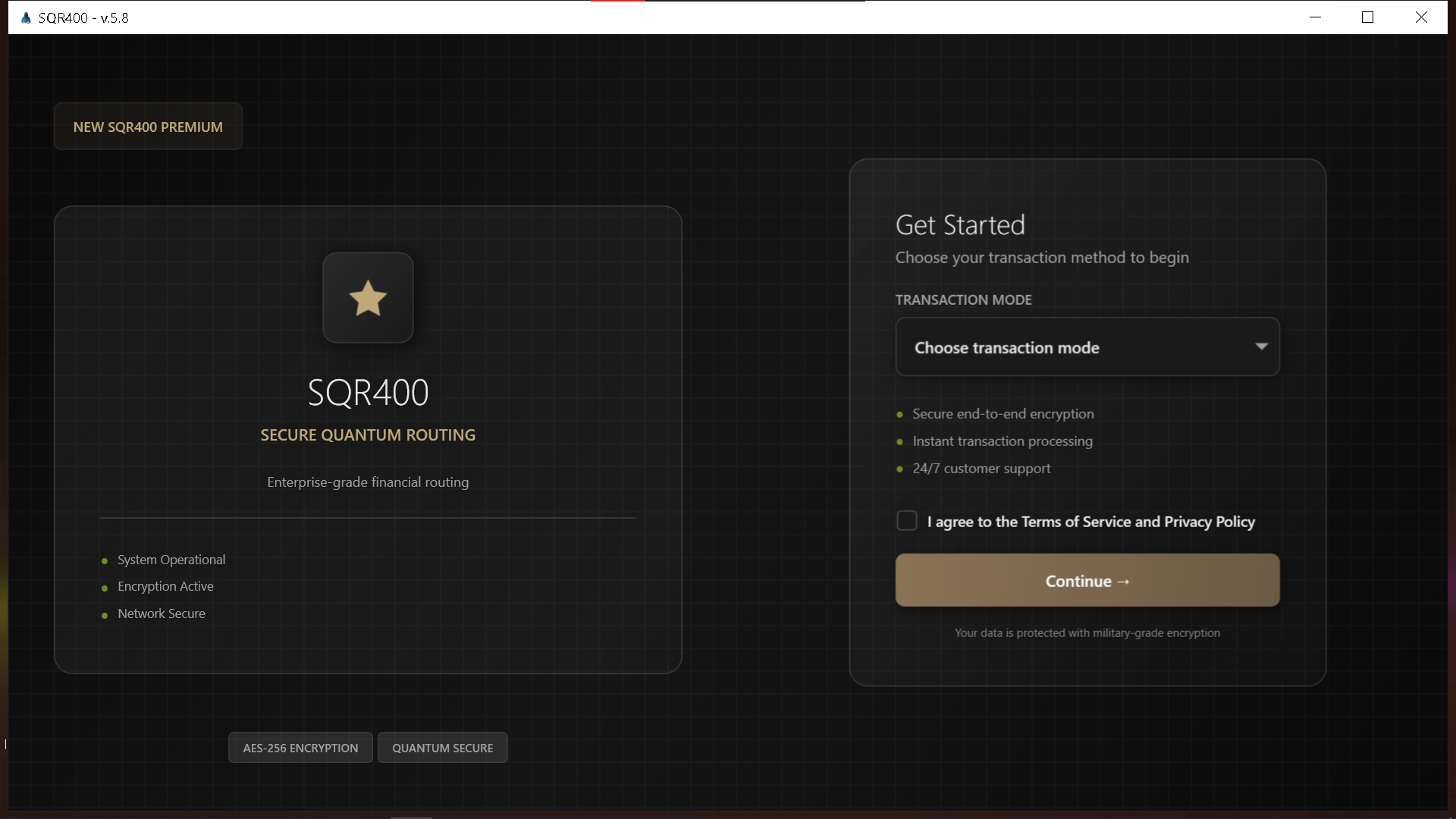
Activate the software
Upon launching the SQR400 flashing tool for the first time, you will be prompted to activate the software. Enter the activation code provided to you at the time of purchase. This step is crucial to unlock the full features of the tool.
Go to the “Settings” => “Subscription” => “Activate Key” section, input your code, and click “Activate” to complete
The activation process will download the latest updates and features to your software.
Note: Ensure you have a stable internet connection during the activation process.
If you encounter any issues, refer to the troubleshooting section in the user manual or contact support for assistance.
Once activated, you can now proceed to use the SQR400 flashing tool to flash funds to your infected bank account.
While you are here, you might also want to set up your transaction PIN in the “Settings” => “Security” section

How to use the SQR400 flashing tool
Make your first transfer:
Make sure to fill in all the required details, such as the recipient’s account number, the amount to transfer, and any
other necessary information. Double-check the details to ensure accuracy. Once everything is set, click on the
“Proceed” button to initiate the transaction.
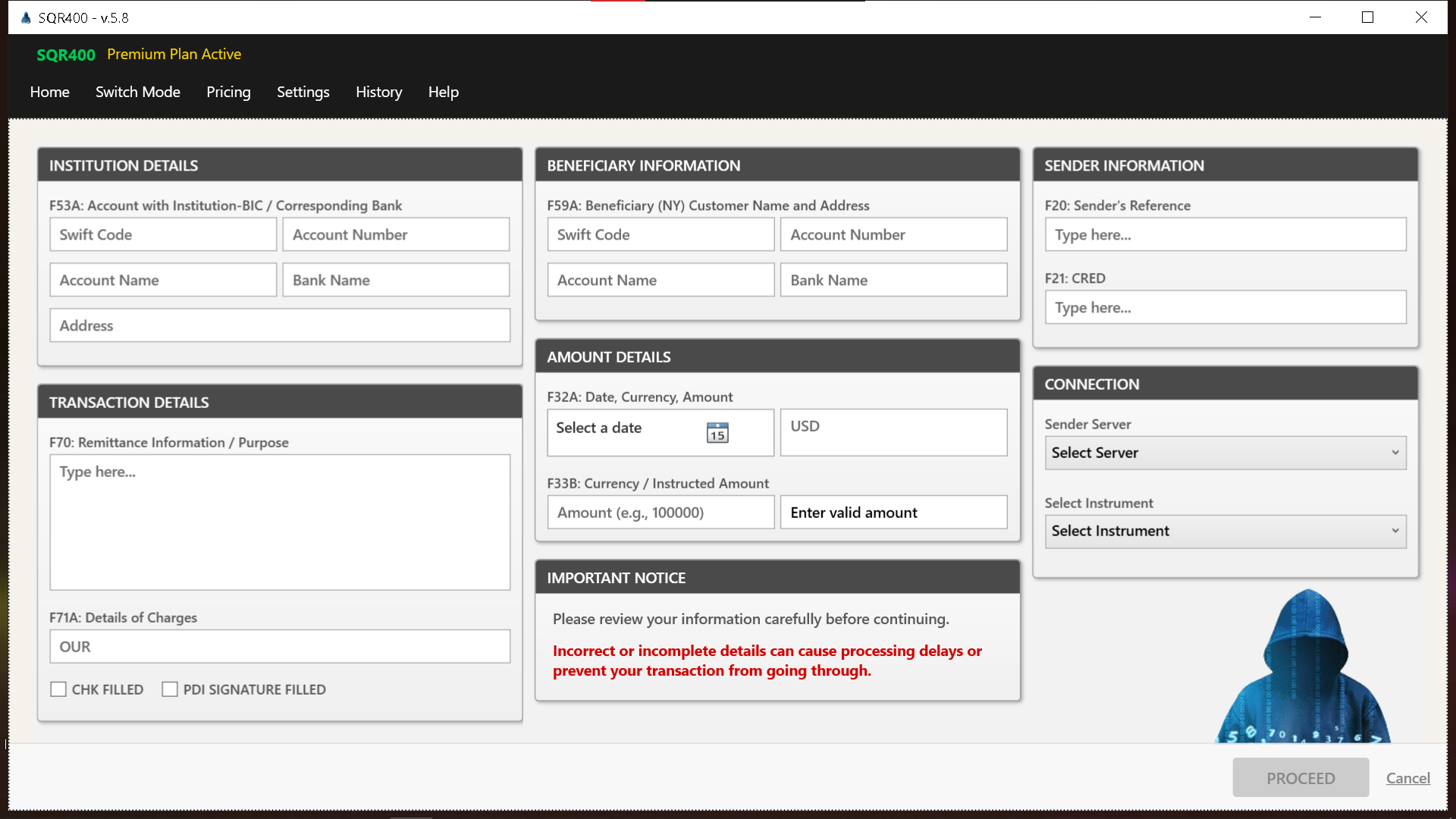
Enter the PIN you’ve set earlier in the Settings

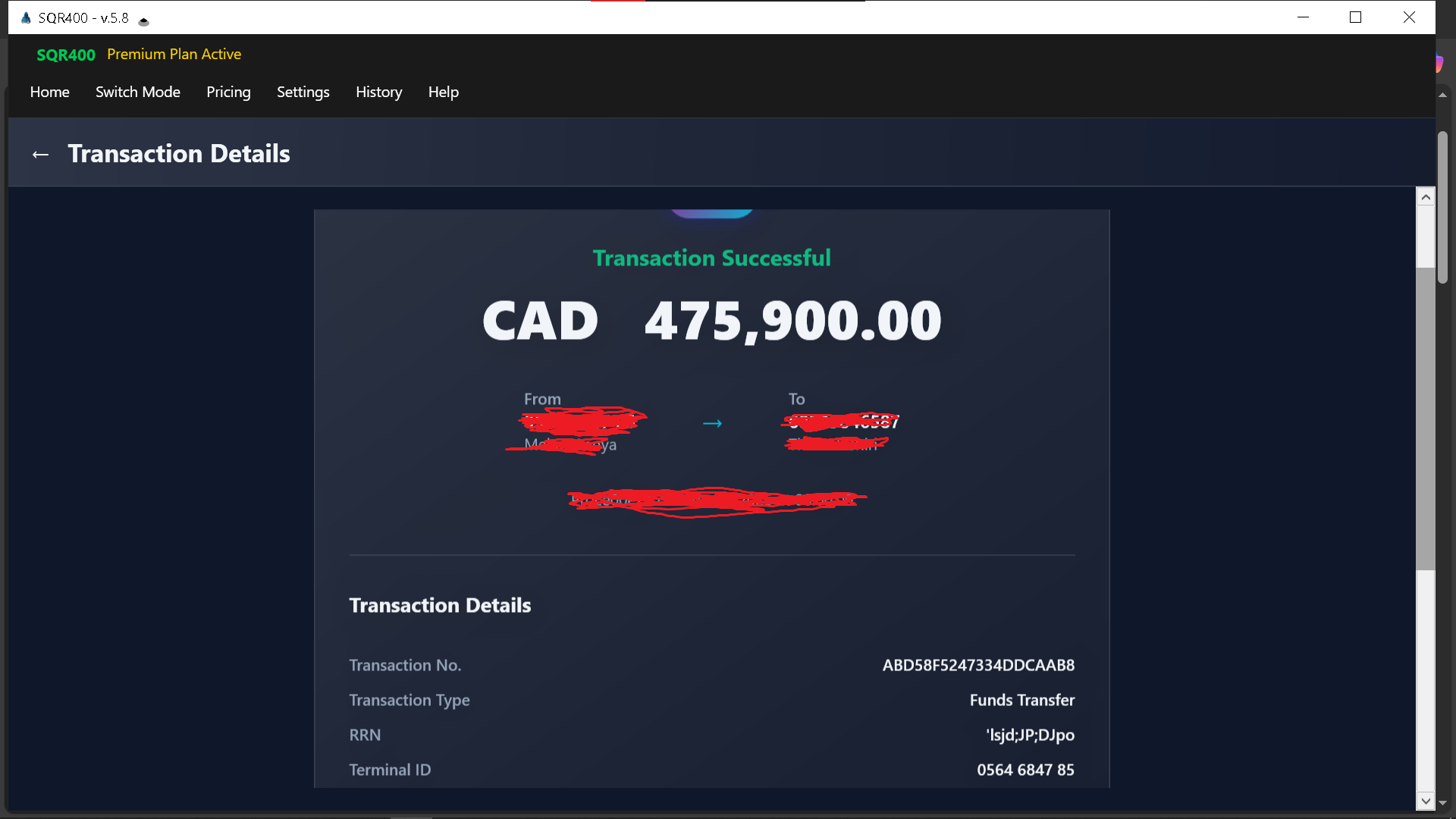
Confirm the transaction details and click on the “Verify and Continue” button to complete the transfer. You should
receive a
notification indicating the success of the transaction.
Troubleshooting
If you encounter any issues during the flashing process, refer to the help window or visit the support page on
the official website.
By following these steps, you should be able to successfully use the SQR400 flashing tool